
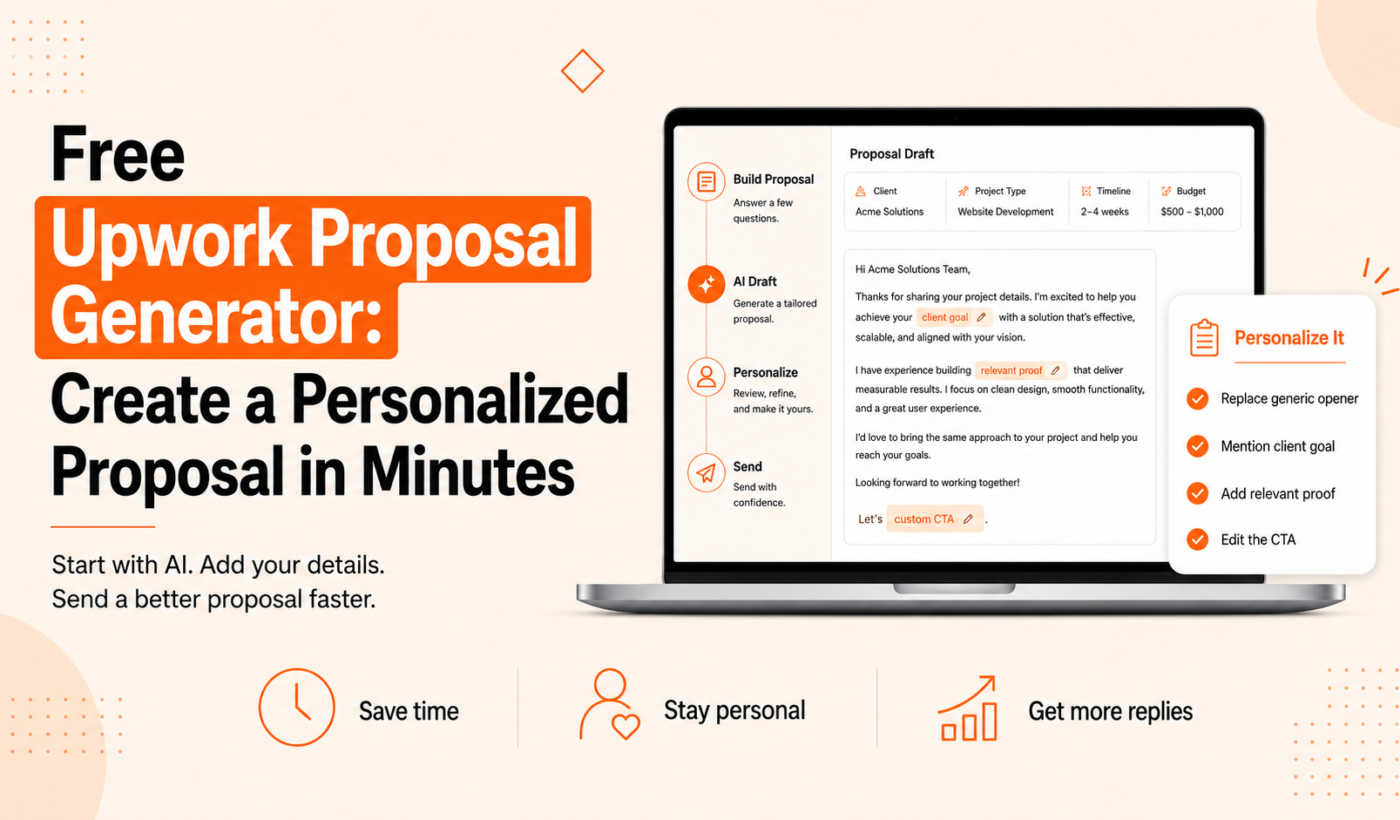
If you want to write proposals faster without starting from a blank page, a free Upwork proposal generator can create a usable draft in seconds. This guide explains what the tool does, when to use it, and a practical step-by-step workflow to generate, personalize, and submit a proposal in minutes — with templates, a checklist, and links to Typing Engine tools you can use right now.
What a free Upwork proposal generator is and when to use one
What the tool does (speed, structure, starter copy)
A proposal generator uses your job brief or keywords to produce a short, structured draft: an opener, a summary of skills, suggested deliverables, and a call to action. Think of it as a fast first draft that removes writer’s block and gives consistent openings you can edit.
Benefits: saves time, avoids writer’s block, creates consistent openings
- Save time on routine proposals so you can apply to more relevant jobs.
- Get a professional structure and suggested phrasing that you can adapt.
- Use variants to test different openers and tones without rewriting each time.
Limitations: generic language, need for personalization, project nuance
Generated drafts can sound generic and may miss job-specific details. Always check the brief and personalize: reference the client, confirm deliverables, and add proof. A generator should be the starting point, not the final submission.
How Typing Engine’s Upwork Proposal Generator works — step by step
Step 1: Paste the job description or enter the brief
Open the Upwork Proposal Generator and paste the job description or type a short brief. The tool uses this input to prioritize the skills, deliverables, and questions the client mentioned.
Step 2: Choose tone, highlight key skills, set proposal length
Select a tone (professional, friendly, direct) and list 2–4 key skills you want the draft to highlight. Choose a short or detailed length depending on the job’s complexity.
Step 3: Generate the draft and pick the best variant
Generate several variants and pick the one with the clearest opener and closest match to the brief. Don’t over-rely on any single variant — use it as a base to edit.
Step 4: Where to personalize the draft (client name, deliverables, examples)
Personalization matters. Replace placeholders with the client’s name, insert a concise deliverable list, and add one relevant portfolio link. Use the AI Text Humanizer to make the phrasing feel natural and remove robotic patterns.
Personalize AI-generated proposals: a practical checklist
Use this short checklist every time you send a proposal. Aim to make edits that take 30–90 seconds for short jobs.
- Start with a client-focused opener — Reference one detail from the brief. Example: “I can implement the mobile checkout flow you described and reduce load time to under 2 seconds.”
- Show one relevant result or short portfolio example — Add a one-line proof and link. Example: “Built a React checkout for X client (link) that improved conversion by X%”. For tips on linking, see How to Mention Your Portfolio in an Upwork Proposal.
- Clarify deliverables, timeline and next steps in one sentence — Example: “I’ll deliver a prototype in 5 business days, then two rounds of revisions; ready to start this week.”
- Ask 1–2 smart questions that show you read the brief — Example: “Do you have an existing API for payment processing, or should I build one?”
- Polish tone and grammar before sending — Reword repetitive phrases with the Paraphrasing Tool and run a final check with the Grammar Checker.
Templates and short examples you can adapt in minutes
Copy one of these concise templates and paste it into the generator for faster, more targeted drafts — or edit a generated draft using these structures.
Short web developer proposal (50–80 words)
“Hi [Client Name], I’m a full-stack developer with 5 years building responsive React/Node apps. I can implement the checkout flow you described and finish a working prototype in 5 business days. Example: [short portfolio link]. Shall I start with a 1-hour scoping call to confirm API details?”
Designer/project-based proposal (concise scope + deliverable)
“Hi [Client Name], I design user-first landing pages and can deliver three high-fidelity mockups and one responsive HTML export within 7 days. Portfolio sample: [link]. Are brand guidelines available, or should I propose color and typography options?”
Writer/SEO retainer proposal (sample opening + next step)
“Hi [Client Name], I write SEO-focused blog content that ranks for targeted keywords. For a monthly retainer I’ll deliver four optimized articles (1,000 words each) with keyword research and meta tags. Portfolio: [link]. Would you like a sample brief for topic approval?”
AI Upwork proposal writer vs. writing from scratch: when to use each
Pros: speed and consistency
Use the generator when you need to apply quickly to fitting jobs or want consistent openers and structure. It helps scale outreach without drafting every line from scratch.
Cons: risk of generic copy and missed brief details
Generated proposals can repeat phrases across submissions. If a job is high-value or requires a detailed pitch, write from scratch or heavily edit the generated draft.
Best practice: hybrid — generate, then personalize
The recommended workflow is hybrid: generate a draft, then personalize for the client. For deeper editing tactics, see our article Upwork Proposal Generator: How to Personalize AI Drafts.
Common mistakes to avoid when using proposal generators
- Sending a generic first sentence — Fix: customize the opener to mention the client’s project or goal.
- Ignoring specific client requirements — Fix: quote one line from the brief and answer it directly.
- Forgetting portfolio links and proof — Fix: add 1–2 relevant links or a one-line result.
- Skipping tone/grammar checks — Fix: run a final pass with the Grammar Checker before sending.
A 5-minute Upwork proposal workflow (timeboxed checklist)
Use this minute-by-minute routine to turn a job post into a polished submission fast. Keep the job open in one tab and Typing Engine tools in another.
- 0:00–1:00 — paste job and generate draft — Open Upwork Proposal Generator (quick access), paste the brief, set tone, and generate two variants.
- 1:00–3:00 — personalize opener, add 1 portfolio link, clarify deliverables — Edit the opener to reference the client, add one relevant link, and state estimated timeline.
- 3:00–4:00 — humanize and grammar-check — Run the changed text through Paraphrase text for free to avoid repetitive wording, then use the AI Text Humanizer to soften robotic phrasing.
- 4:00–5:00 — final read, attach portfolio, submit — Do a quick final read, attach portfolio files or links, and submit.
Next steps and recommended Typing Engine tools
When you’re ready, Generate a free personalized Upwork proposal to get a draft you can edit. After generating, use these complementary tools:
- Humanize AI text for free — make AI phrasing sound natural.
- Paraphrase text for free — reword lines so your proposals don’t repeat the same phrases across jobs.
- Check grammar for free — final clarity and correctness pass before you hit send.
For broader proposal workflows and faster pitching routines, read How To Generate Winning Upwork Proposals in Minutes (Not Hours).
FAQ
Is the Upwork Proposal Generator really free to use?
Yes — the Typing Engine Upwork Proposal Generator is available as a free tool on the Typing Engine site. Use it to generate drafts and experiment with different tones and lengths.
How much personalization does an AI Upwork proposal writer need before sending?
At minimum: customize the opener, add one relevant portfolio link, clarify deliverables/timeline, and ask one question. This usually takes under a few minutes for short jobs.
Can I use the same generated proposal for multiple job applications?
You can reuse structure and some phrasing, but always edit the opener and at least one sentence to reference the specific client or brief to avoid sounding generic.
Will using a proposal generator violate Upwork’s terms of service?
Upwork permits using tools to draft content, but you should follow Upwork Help and platform policies. We recommend checking current Upwork guidance on AI-assisted proposals to ensure compliance with any updated rules.
What other Typing Engine tools should I use to polish a generated proposal?
Start with the AI Text Humanizer, then the Paraphrasing Tool, and finish with the Grammar Checker for a quick, reliable polish.
Try Typing Engine’s free Upwork Proposal Generator — open the tool now to generate a personalized draft you can edit and submit in minutes: Generate a free personalized Upwork proposal.