
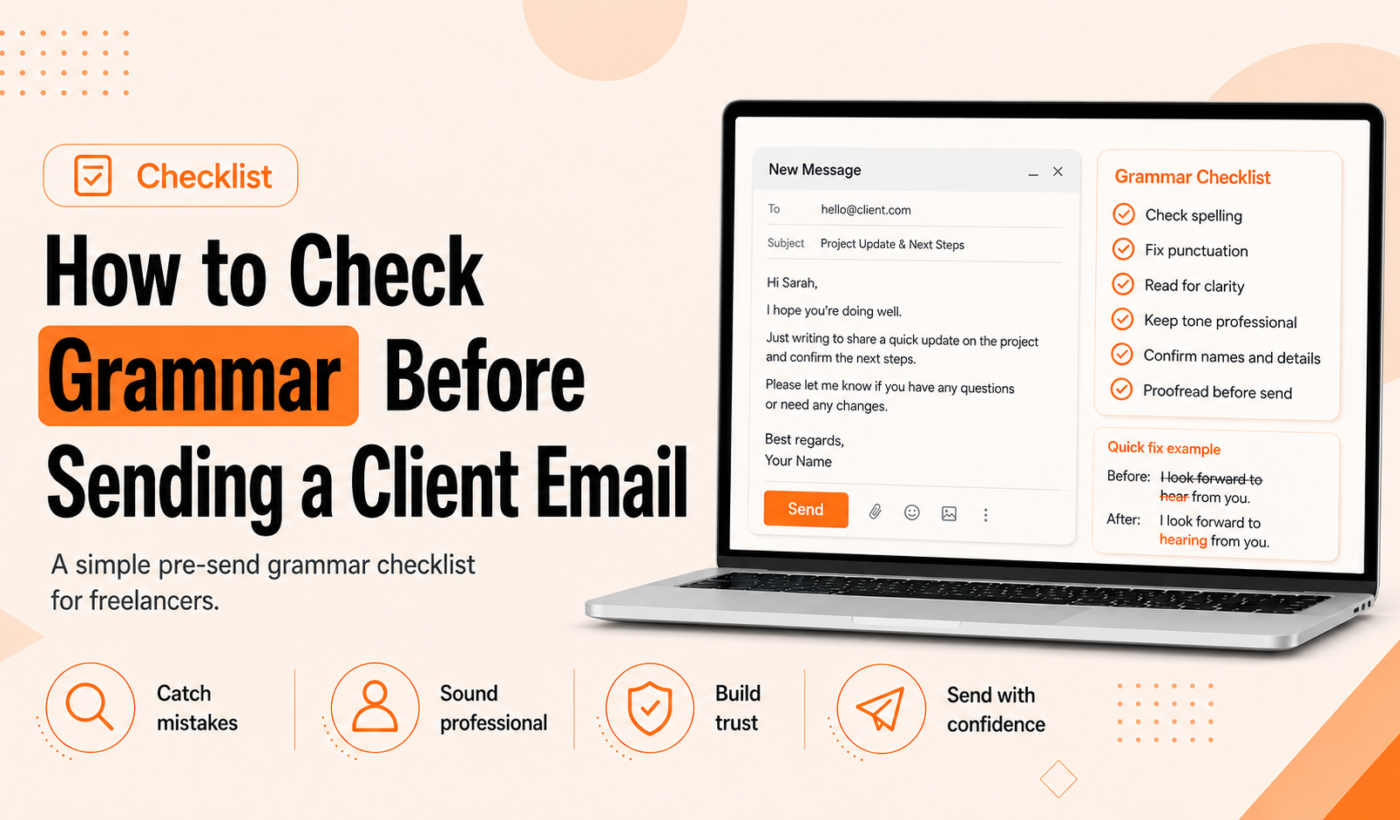
Good grammar matters in client email. This checklist shows how to check grammar for email and polish tone, dates, attachments and calls to action so your messages read professionally and avoid costly confusion. Use the quick checklist every time, then follow the step-by-step checks and tool suggestions to speed the process without sounding robotic.
Quick pre-send checklist (10 practical steps)
- Re-read the subject line for clarity and recipient relevance — is it specific, short, and does it match the message? Example: Replace “Update” with “Project X: draft ready for review by June 3”.
- Confirm recipient(s) and reply vs. reply-all — double-check To, CC and BCC so you don’t share private info or leave someone out.
- Read the email aloud — you’ll catch awkward phrasing, missing words, and tone issues faster when you hear it.
- Check grammar and spelling with an email grammar checker — run a quick pass with a reliable tool before sending. Try Typing Engine’s free grammar checker for a fast clarity and correctness pass.
- Verify tone is appropriate for this client — formal or friendly? Mirror the client’s style without being overly casual.
- Shorten long sentences and break into paragraphs — aim for 2 to 4 short paragraphs for most client messages.
- Confirm dates, numbers and attachments — call out the exact format you used and attach files before typing send.
- Include a clear call to action and next steps — state what you want and by when in one line near the end.
- Review signature and contact info — include the right project name, phone or calendar link if relevant.
- Save a copy or template and send a test if needed — for sensitive messages, send to yourself first or save the text as a reusable template.
How to use an email grammar checker (step-by-step)
Automated tools speed up checks, but they don’t replace human judgment. Here’s a practical workflow to get the most from an email grammar checker.
Copy-paste vs. browser plugin: pros and cons
- Browser plugin: runs in your email client and flags issues live. Great for speed, but review privacy settings before enabling in sensitive accounts.
- Copy-paste: paste the draft into a separate tool for a focused review. Safer for confidential content if you verify the tool’s privacy policy first.
Run the check: what to look for
When you run Typing Engine’s Typing Engine’s Grammar Checker, look for grammar, punctuation, clarity and tone flags. Pay attention to suggestions that change meaning. If a fix would alter a technical term or client terminology, leave it and revise manually instead.
Decide which suggestions fit your voice and the client context
Accept clear fixes (spelling, punctuation, verb agreement). Question stylistic suggestions if they make your message sound less natural or too formal. The goal is correctness plus authentic voice.
Fix repeated issues and update templates to prevent recurrence
If the checker keeps flagging the same things, update your templates or create a short private style note so you avoid repeating the same mistakes.
Manual editing checks every freelancer should do
- Read aloud and slow down — slow reading exposes missing words and odd rhythm.
- Confirm factual details — verify client names, project codes, deadlines and payment terms.
- Match tone to the client — use one to three tones: formal, friendly, or concise. Pick the one the client uses most.
- Avoid jargon when the client isn’t technical — if you must use terms, briefly define them.
- Check for unintentionally passive or apologetic language — replace weak phrasing like I think or Sorry I just with direct, confident lines when appropriate.
Common grammar mistakes in business email and quick fixes
- Subject-verb agreement
Example: The list of tasks are attached. -> The list of tasks is attached.
- Comma splices and run-on sentences
Example: I reviewed the file, it needs edits. -> I reviewed the file. It needs edits.
- Misplaced modifiers
Example: I emailed the client the updated draft yesterday that you sent. -> I emailed the client the updated draft you sent yesterday.
- Incorrect punctuation in dates/numbers
Example: Please deliver by 6/3/21. -> Please deliver by June 3, 2021.
- Overuse of exclamation marks and informal slang
Fix: Use one polite exclamation for enthusiastic moments; otherwise stick to periods and friendly wording that fits the client.
Before-and-after examples (realistic client email edits)
Short request email — tighten and clarify
Original: Hi, just wanted to see if you could send the latest assets? thanks!
Edited: Hi Sarah, could you send the latest image assets for the homepage by Thursday, June 3? Thanks, Mike
Status update — make dates and actions explicit
Original: Update: work’s going good. Will send soon.
Edited: Quick status update: I finished the homepage draft and uploaded it to the shared folder. Please review by Friday, June 4, and let me know any changes so I can finalize the deliverable on June 7.
Proposal follow-up — polite CTA and clearer subject line
Original subject: Proposal
Original body: Hi, checking in about the proposal I sent last week. thoughts?
Edited subject: Follow-up: Proposal for Website Redesign
Edited body: Hi Jordan, I wanted to follow up on the website redesign proposal I sent last Thursday. Do you have 15 minutes this week to discuss adjustments? I’m available Tuesday and Thursday mornings.
If you want to quickly try rewording a sentence from one of these examples, use the Paraphrase text for free tool to test alternatives.
Tools and workflow: combine AI tools with human review
Pairing AI tools with a short human checklist makes proofreading efficient. Here’s a five-step workflow freelancers can use:
- Step 1: Draft and self-edit — read aloud, fix obvious typos, and shorten long sentences.
- Step 2: Run a grammar checker — run a focused pass with Typing Engine’s Typing Engine’s Grammar Checker for grammar and clarity suggestions.
- Step 3: Humanize AI suggestions if wording sounds robotic — when an AI suggestion sounds stiff, run it through Humanize AI text for client emails to restore natural phrasing.
- Step 4: Use paraphrase or paragraph rewriter for clarity — use Paraphrase text for free or the Paragraph Rewriter for longer sections that need simpler flow.
- Step 5: Final short read and send — one last quick read aloud, confirm attachments, then send.
If you need to condense a long client thread before replying, Summarize long threads with the Summarizer Tool to capture the essentials first.
Final send checklist and email templates
2-minute final checklist
- Subject line matches the message.
- Recipient list is correct.
- Attachments uploaded and named clearly.
- One clear CTA or next step with a date.
- Signature contains the right contact info.
- Run a quick grammar check if you made edits after the last pass.
Subject line templates
- Proposal: [Project Name] — [Short Benefit]
- Status Update: [Project Name] — [Key Milestone or Date]
- Follow-up: [Proposal/Meeting] — [One-sentence purpose]
Professional sign-off templates
- Best regards,
- Thanks,
- Looking forward to your feedback,
Where to practice and learn more
Try quick checks with Typing Engine’s Grammar Checker and humanize AI-generated lines using AI Text Humanizer. For longer rewrites, the Paraphrasing Tool and Paragraph Rewriter can help. If you need to condense a thread first, Summarize long threads with the Summarizer Tool.
If you want more before-and-after editing examples you can adapt, read the article on AI humanizer for LinkedIn posts: before-and-after examples and an editing checklist.
When you also need to polish proposal emails for platforms like Upwork, try Generate a free personalized Upwork proposal to speed drafting and then use this checklist to proof the message before sending.
FAQ
What’s the fastest way to check grammar for an email before sending?
Do a quick read aloud, confirm recipients and attachments, then run a focused pass with a grammar checker. For many freelancers that takes under two minutes.
Are free email grammar checker tools safe to use with client content?
Many free tools are safe for general use, but avoid pasting confidential or sensitive client data into third-party tools unless you verify their privacy policy. Use browser plugins within accounts you control, or run checks on less-sensitive copy by copy-pasting into a vetted tool.
When should I trust a grammar checker and when should I edit manually?
Trust grammar checkers for clear errors like spelling, punctuation and agreement. Edit manually for tone, technical terms, contract language and anything where a suggestion could change meaning.
Can AI tools change the tone of my message and how do I fix that?
Yes. Use an AI humanizer to restore natural phrasing and then re-read aloud to confirm the tone matches the client. Typing Engine’s AI Text Humanizer is useful for this step.
How do I avoid common grammar mistakes in short client updates?
Keep sentences short, use active voice, confirm dates and numbers, and run a quick grammar check. Templates for status updates help you stay consistent.
Try Typing Engine’s free Upwork Proposal Generator to speed your proposal drafts, then use this checklist to check grammar for email before you send. Generate a free personalized Upwork proposal here: Generate a free personalized Upwork proposal.