
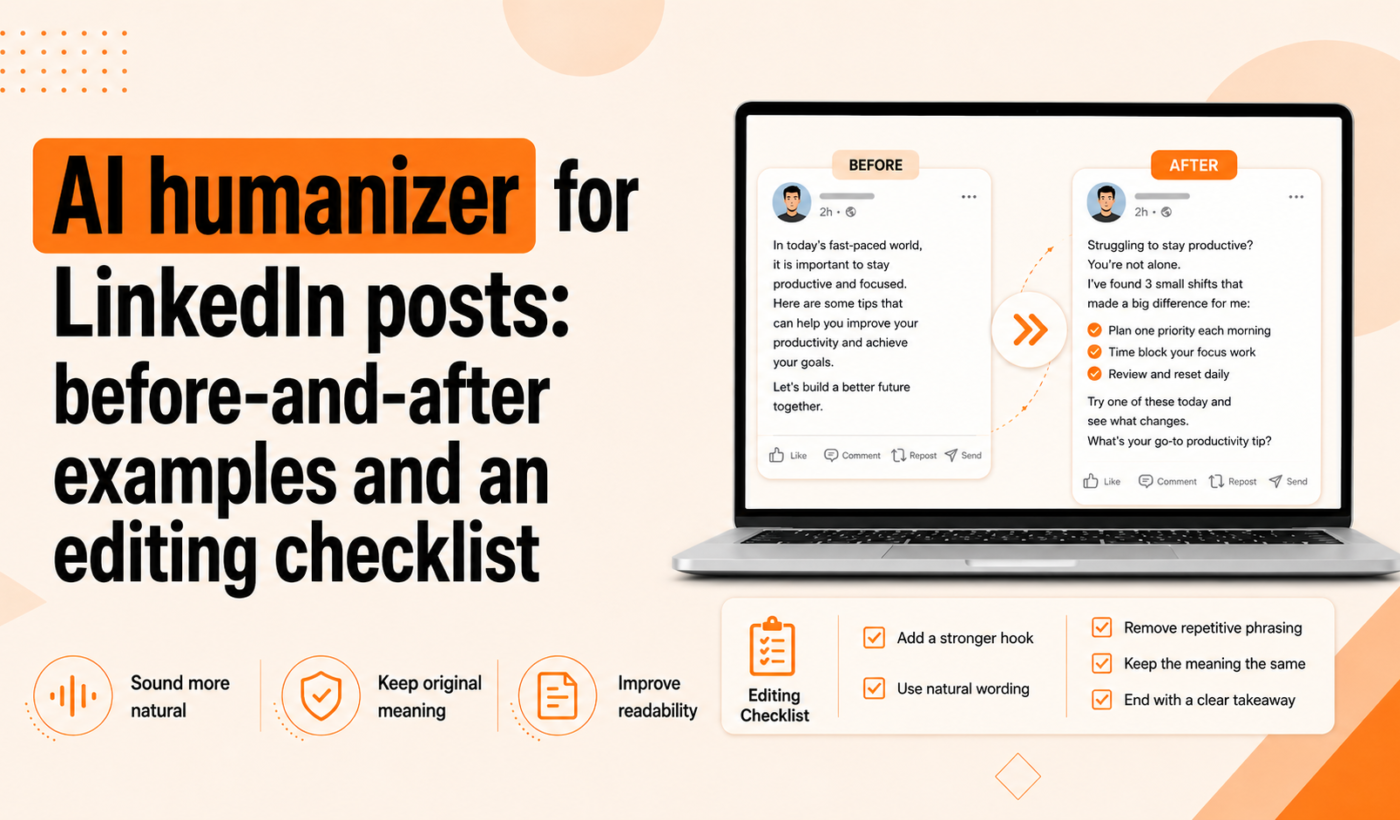
If you use AI to draft LinkedIn content, an AI humanizer for LinkedIn posts helps turn stiff, generic text into conversational posts that actually connect with clients and peers. This article gives six before-and-after examples, a repeatable 6-step workflow, and a 12-item checklist you can use before you hit Publish.
What an AI humanizer for LinkedIn posts does (and what it doesn’t)
Quick definition: AI humanizer vs. paraphraser vs. grammar checker
An AI humanizer adjusts tone, voice, and phrasing so a draft reads like a real person wrote it. A paraphraser offers alternate wordings; a grammar checker fixes correctness and punctuation. Use an AI humanizer when the text is accurate but feels robotic, and use paraphrasing or grammar tools for style or correctness tweaks.
For a deeper guide on preserving meaning while humanizing AI text, see How to Humanize AI Text Without Changing the Meaning.
When to use an AI humanizer for LinkedIn content
- You want a conversational voice that matches your freelance brand.
- You need to humanize AI-generated career tips, case studies, or personal stories before posting.
- You’re rewriting drafts to be shorter and more scannable for LinkedIn feeds.
Limitations and why a human review still matters
An AI humanizer helps fast-track tone and flow, but it won’t verify facts, protect client privacy, or add the kind of personal detail that builds trust. Always do a final human pass to confirm accuracy, client confidentiality, and your unique perspective.
Why humanizing LinkedIn posts matters for freelancers
Builds authentic personal brand and trust
Freelancers win work when clients feel they know and can trust them. A humanized post includes small, specific details—names, quick outcomes, or a short lesson—that make you memorable.
Improves clarity and actionability for potential clients
Clients scan LinkedIn. Clear, human language makes your services and next steps obvious, so potential clients can decide quickly whether to message or follow up.
Avoids robotic tone that lowers engagement
Generic, corporate-sounding copy is easy to ignore. Humanized posts invite comments, questions, and direct messages because they feel personal.
For structure and engagement tips, see How to Write a LinkedIn Post That Goes Viral (With Examples), which provides additional examples you can adapt after humanizing your draft.
Before-and-after examples: 6 real editing scenarios
Each example shows the original AI draft, a humanized version you could post, and a brief note on what changed.
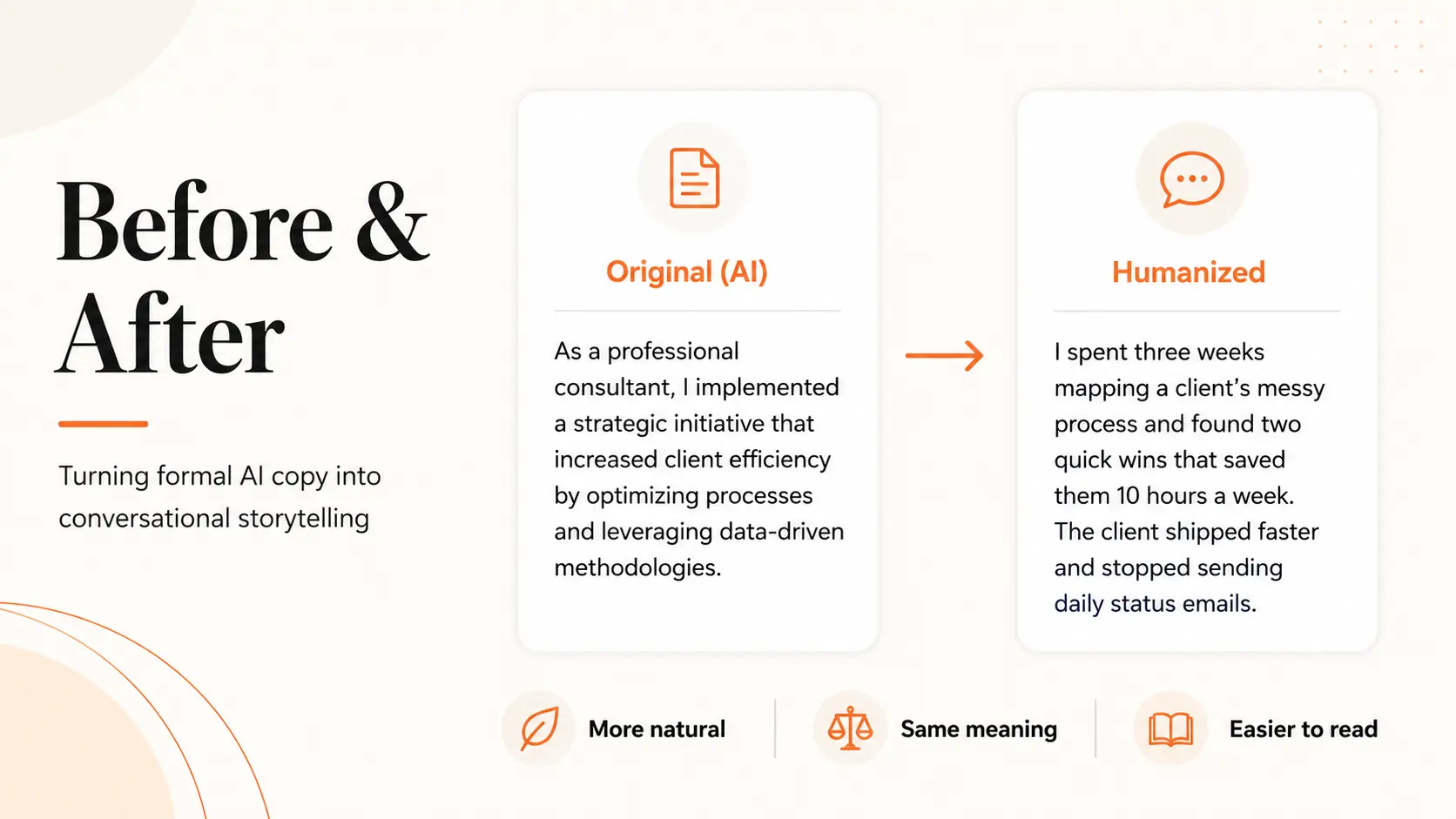
Example 1 — Turned formal AI copy into conversational storytelling
Original (AI): As a professional consultant, I implemented a strategic initiative that increased client efficiency by optimizing processes and leveraging data-driven methodologies.
Humanized: I spent three weeks mapping a client’s messy process and found two quick wins that saved them 10 hours a week. The client shipped faster and stopped sending daily status emails.
Why it works: Adds specifics, a human timeline, and a small result. It tells a micro-story rather than pitching broad expertise.
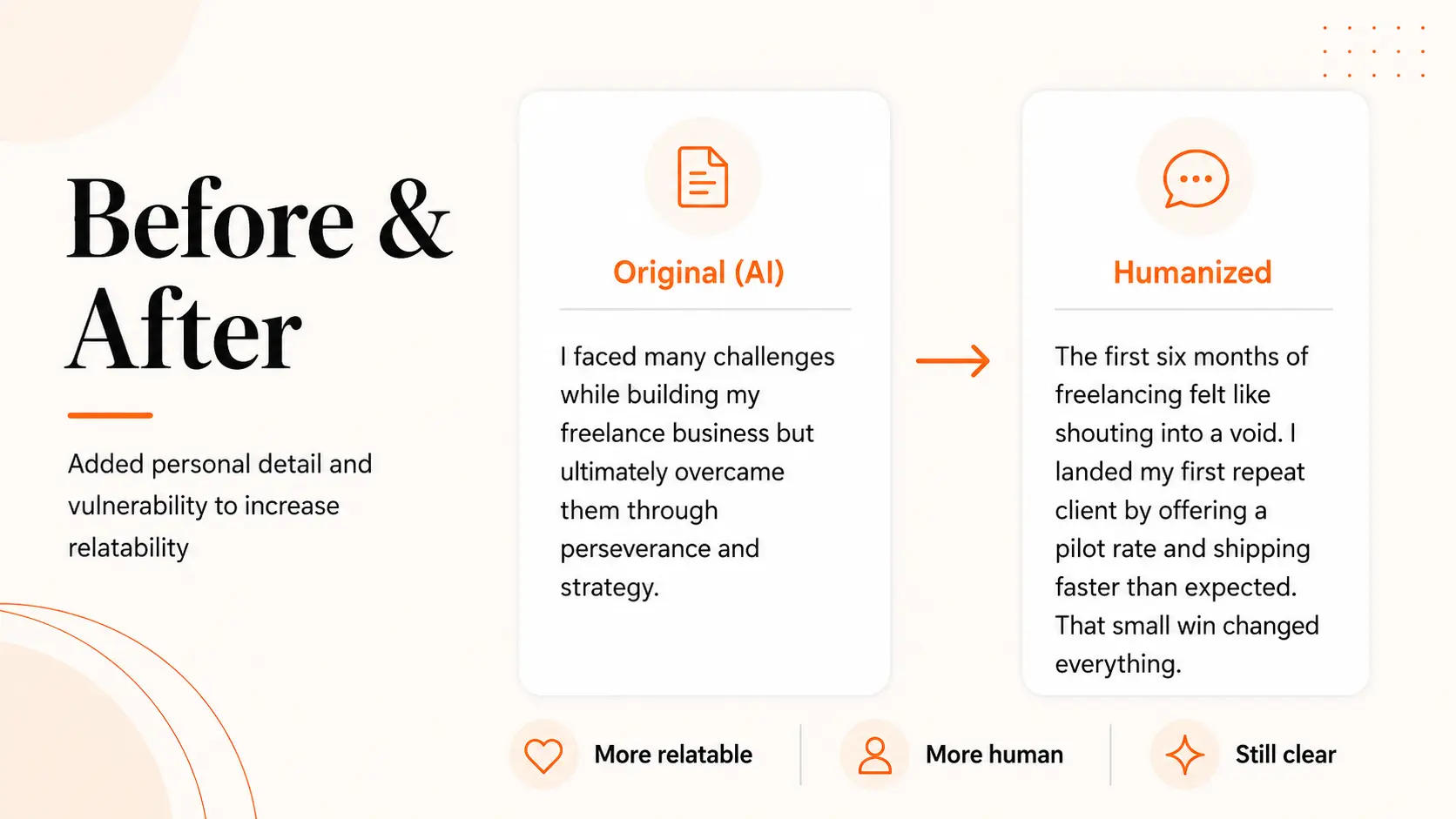
Example 2 — Added personal detail and vulnerability to increase relatability
Original (AI): I faced many challenges while building my freelance business but ultimately overcame them through perseverance and strategy.
Humanized: The first six months of freelancing felt like shouting into a void. I landed my first repeat client by offering a pilot rate and shipping faster than expected. That small win changed everything.
Why it works: Vulnerability and a clear action make the post relatable and useful for other freelancers.
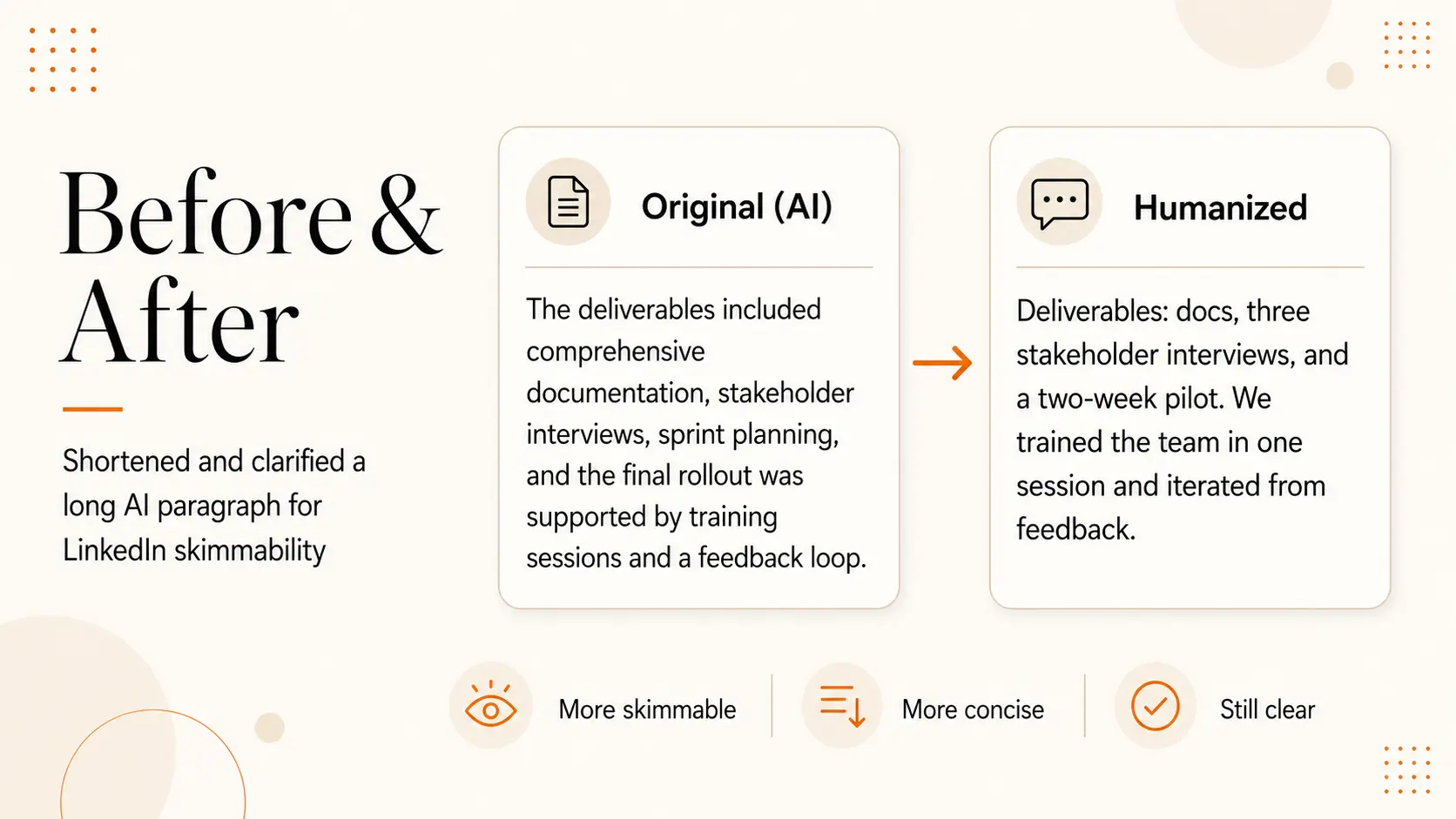
Example 3 — Shortened and clarified a long AI paragraph for LinkedIn skimmability
Original (AI): The deliverables included comprehensive documentation, stakeholder interviews, sprint planning, and the final rollout was supported by training sessions and a feedback loop.
Humanized: Deliverables: docs, three stakeholder interviews, and a two-week pilot. We trained the team in one session and iterated from feedback.
Why it works: Short lines, bullets, and plain language make it scannable on mobile.
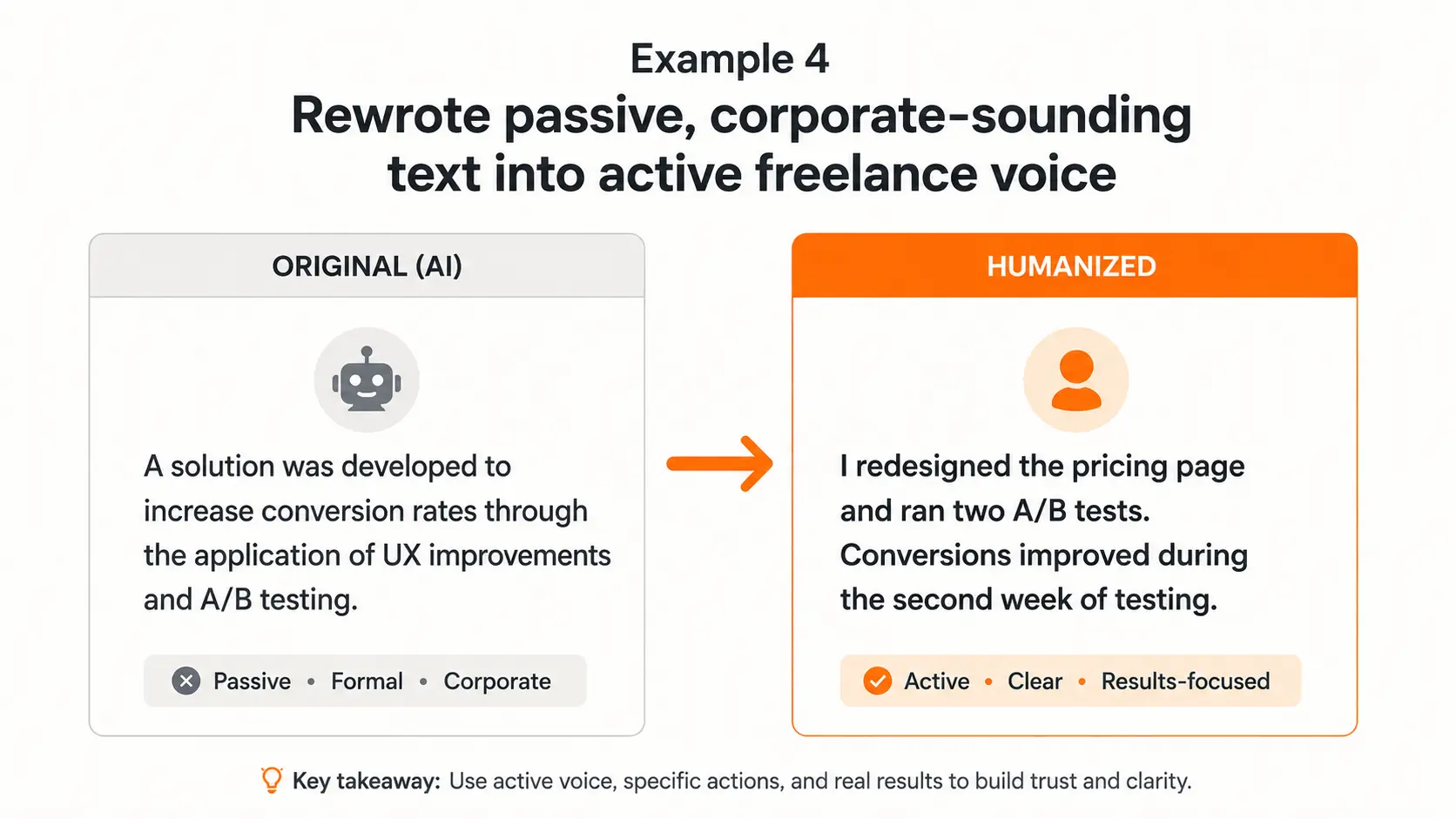
Example 4 — Rewrote passive, corporate-sounding text into active freelance voice
Original (AI): A solution was developed to increase conversion rates through the application of UX improvements and A/B testing.
Humanized: I redesigned the pricing page and ran two A/B tests. Conversions improved during the second week of testing.
Why it works: Active voice and a clear actor (you) boost credibility.
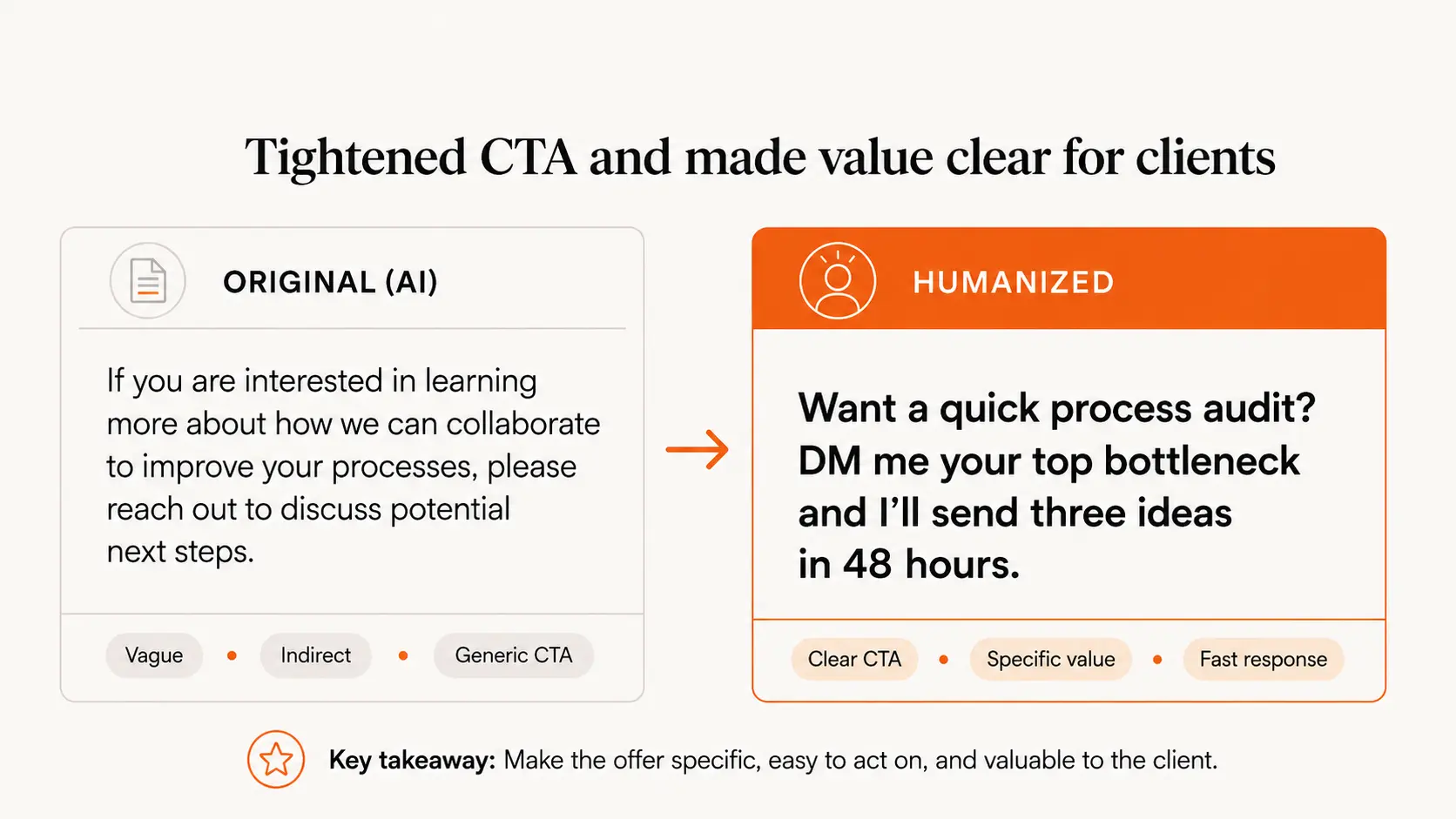
Example 5 — Tightened CTA and made value clear for clients
Original (AI): If you are interested in learning more about how we can collaborate to improve your processes, please reach out to discuss potential next steps.
Humanized: Want a quick process audit? DM me your top bottleneck and I’ll send three ideas in 48 hours.
Why it works: A specific, low-friction CTA invites immediate action.
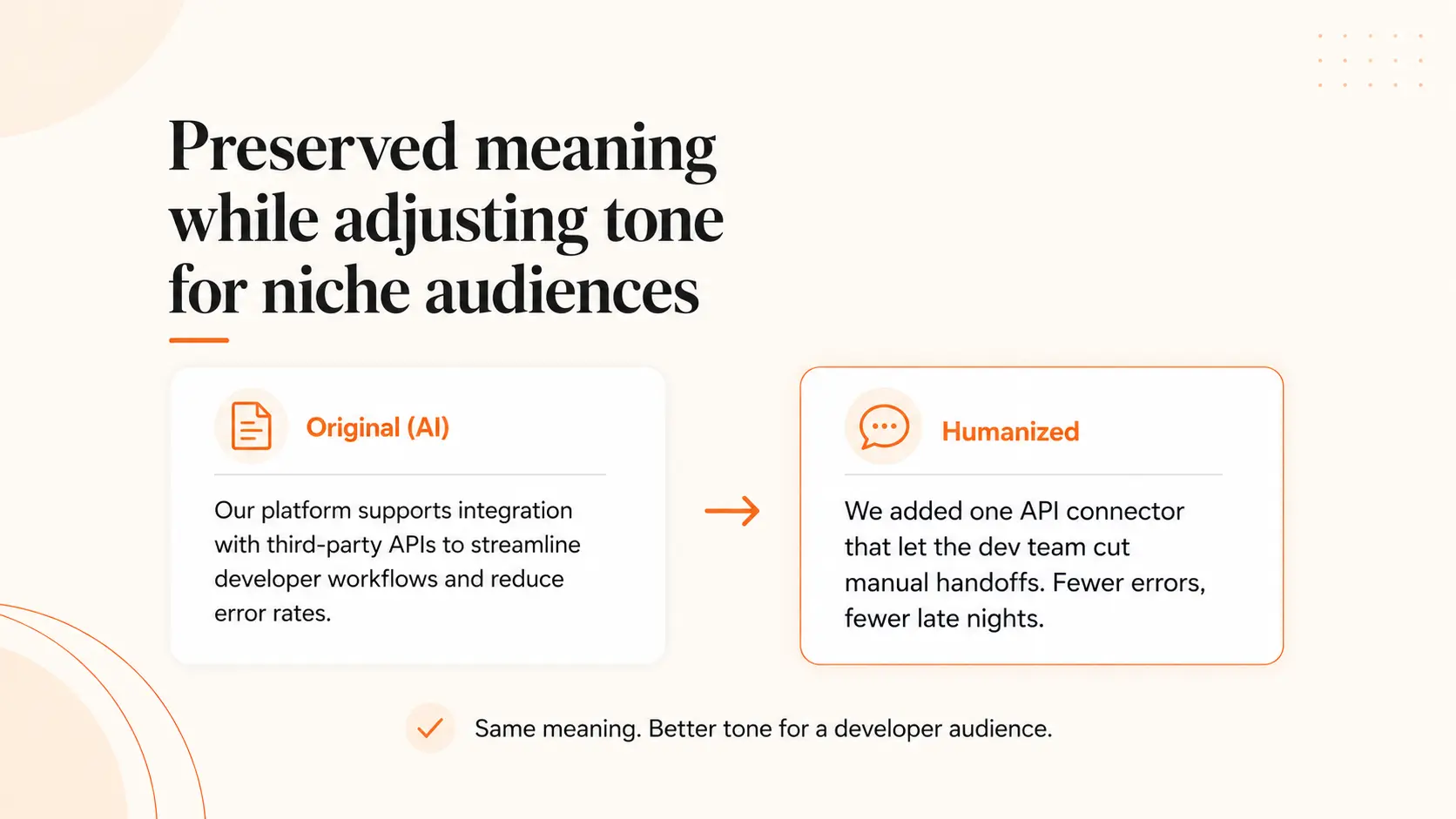
Example 6 — Preserved meaning while adjusting tone for niche audiences
Original (AI): Our platform supports integration with third-party APIs to streamline developer workflows and reduce error rates.
Humanized: We added one API connector that let the dev team cut manual handoffs. Fewer errors, fewer late nights.
Why it works: Keeps the technical detail but removes corporate phrasing and adds the human outcome.
Step-by-step workflow: Humanize AI LinkedIn content in 6 practical edits
- Step 1 — Confirm post goal and audience.Decide if the post should educate, show work, or invite contact. That determines tone and CTA.
- Step 2 — Run AI draft through the AI Text Humanizer.Start with the AI Text Humanizer to convert robotic phrasing into conversational lines. Treat its suggestions as a first pass, not a final copy.
- Step 3 — Use the Paraphrasing Tool for alternate phrasings.If a sentence still sounds off, try the Paraphrasing Tool for different tones or shorter variations.
- Step 4 — Run Grammar Checker for clarity and tone.Use the Grammar Checker to fix any punctuation or passive constructions that reduce clarity.
- Step 5 — Shorten with the Summarizer Tool where needed.If the post is long, use the Summarizer Tool to create a tighter version you can edit for voice and specificity.
- Step 6 — Final human pass: add specifics, names, numbers and an authentic CTA.Make small, personal edits only you can add: a client title (without identifying private details), a time period, or a clear next step for readers.
Practical checklist: 12 quick edits before publishing a humanized LinkedIn post
- Voice and tone: Does this sound like you? (Use Humanize AI text for free if it doesn’t.)
- Specificity: Add one name, timeframe, or measurable outcome if possible.
- Main point: Is the core idea visible in the first 1–2 lines?
- Clarity: Remove jargon or corporate filler.
- Length: Break long paragraphs; aim for short lines that read well on mobile.
- CTA: Make the next step clear and low friction.
- Privacy: No client-identifying details or confidential numbers.
- Active voice: Use “I” or “we” instead of passive constructions where appropriate.
- Proofread: Run the Grammar Checker for quick fixes.
- Variety: If you post regularly, use the LinkedIn Post Generator to test different angles.
- Relevance: Does the post match your target client’s problems?
- Emotion: Add one human detail—frustration, relief, or surprise—to invite comments.
Tool comparison and recommended sequence
Start with the AI Text Humanizer for tone, then use the Paraphrasing Tool for alternate wordings. After that, polish with the Grammar Checker and shorten with the Summarizer Tool if needed. Finish by creating final post variations in the LinkedIn Post Generator to test formats and CTAs.
Common mistakes to avoid when humanizing AI LinkedIn content
- Over-polishing: Don’t remove unique phrasing that signals personality; generic replacements reduce trust. For common grammar pitfalls, review Common Grammar Mistakes Freelancers Make in Proposals (with examples and fixes) to avoid similar errors.
- Changing facts: Never edit claims or metrics without confirming accuracy—don’t invent outcomes to sound more successful.
- Ignoring platform norms: Avoid overly long posts or dumping external links in the first comment; keep LinkedIn-friendly formatting.
- Fluff CTAs: Replace vague CTAs like “Contact me for more info” with something specific and low friction.
FAQ
How does an AI humanizer for LinkedIn posts differ from a paraphrasing tool?
An AI humanizer focuses on tone and voice to make copy sound like a real person. A paraphrasing tool gives alternate wordings or shorter sentences. Use the humanizer first for voice, then paraphrase if you want different phrasing.
Will using an AI humanizer change the facts or claims in my post?
No—humanizers should not alter factual claims. You must review numbers, outcomes, and client information yourself to ensure accuracy and privacy.
Can I use these tools to keep my brand voice consistent across posts?
Yes. Run drafts through the AI Text Humanizer and keep a short style note (phrases you use often) so the tool’s edits align with your voice over time.
Are my drafts private when I paste them into Typing Engine tools?
Check the tool interface for privacy notices or terms. Treat any draft with client-identifying details as sensitive—remove or anonymize specifics before pasting.
How long should a humanized LinkedIn post be for best engagement?
There’s no single perfect length, but aim for scannable posts: 3–6 short paragraphs or a concise list. Put the main point in the first two lines to capture attention.
Conclusion and next steps
Humanizing AI drafts makes LinkedIn posts feel like they came from a real freelancer—clear, specific, and easy to act on. Use the workflow above: humanize for tone, paraphrase if needed, polish grammar, shorten, then add your final human details.
Ready to practice? Try the recommended tool sequence starting with the AI Text Humanizer, and when you have a final version, Generate a free personalized Upwork proposal to turn your LinkedIn visibility into client outreach.