
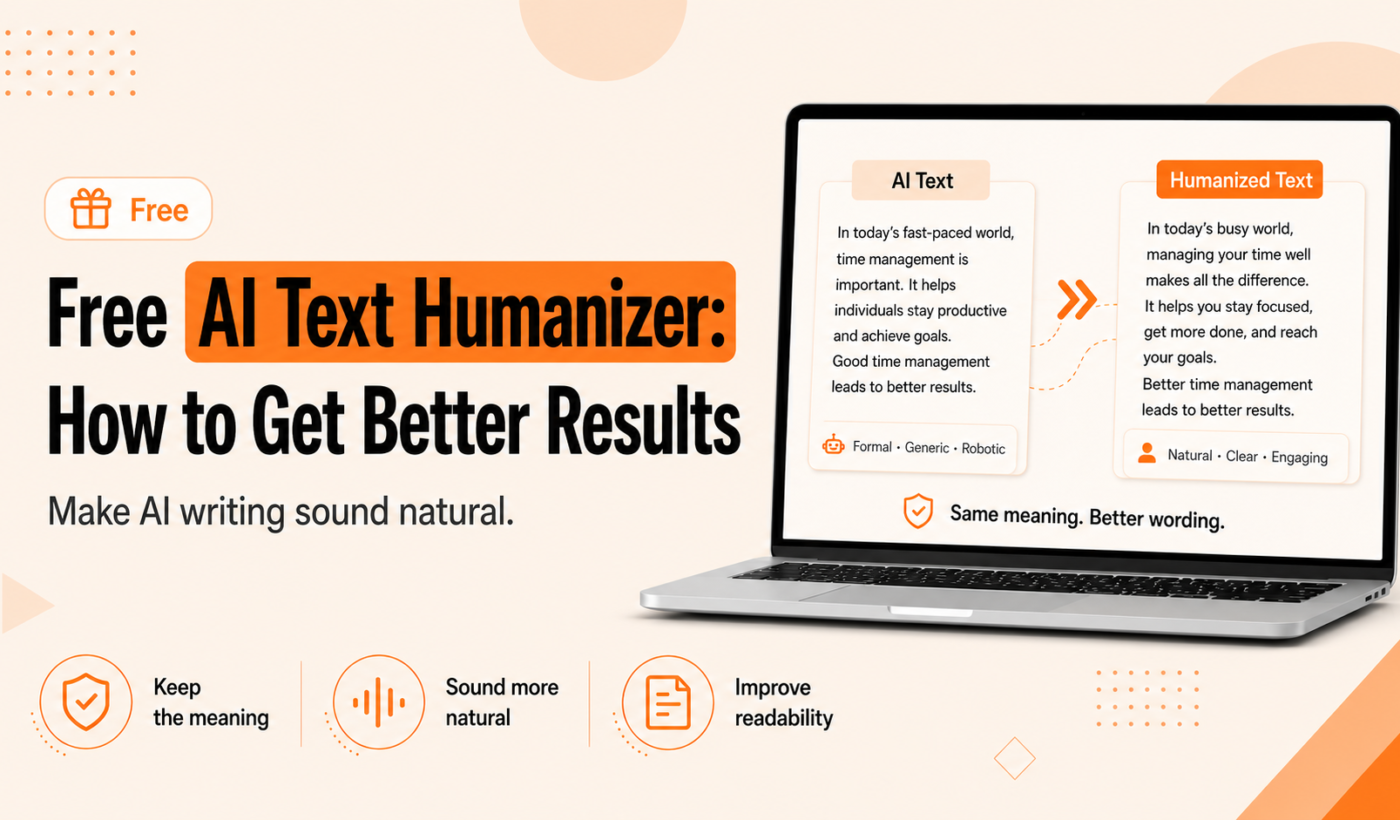
If you use AI to draft proposals, LinkedIn posts, emails or blog intros, a free AI text humanizer can help make that text sound natural and readable. This guide explains what a free AI text humanizer does, when to use one, and gives step-by-step prompts and a tested workflow using Typing Engine tools so you get better, usable results without wasting time.
What is a free AI text humanizer and when to use one
Quick definition: free AI text humanizer
A free AI text humanizer is a tool that adjusts tone, phrasing and sentence rhythm of a draft to make it read like something a human wrote. It’s different from tools that just shorten or correct grammar — the humanizer focuses on voice and natural flow.
How it differs from a paraphrasing tool and a grammar checker
- Humanizer: Reframes sentences to feel conversational or professional depending on your settings; reduces robotic phrasing.
- Paraphrasing tool: Rewords content while keeping meaning, useful when you want alternate phrasing or to avoid repetition.
- Grammar checker: Fixes errors, punctuation and clarity but doesn’t change personality or tone.
Common use cases
- Upwork proposals and cover letters that need a human touch before sending to clients.
- LinkedIn posts where you want authentic-sounding voice.
- Email outreach that must sound personal and not templated.
- Blog drafts and course materials that require clear, approachable language.
How free AI text humanizers actually work (short technical overview)
What the tool changes
Humanizers usually alter tone, vary sentence length, replace formal or repetitive phrasing with more natural alternatives, and introduce small idiomatic touches that read like human speech. The result should be more conversational rhythm and less predictability.
What it doesn’t guarantee
These tools are not fact-checkers or creative strategists. They won’t verify facts, add original research, or replace a human editor for high-stakes client work.
Why short inputs + clear instructions produce better output
Giving the tool a focused passage and a clear instruction (tone, audience, length) helps it produce precise results. Long, messy inputs can confuse the model and produce generic rewrites.
Prepare your draft for the best humanizing results
Clean facts and preserve critical details
Before you run the humanizer, highlight or mark names, numbers, links and client specifics so the tool doesn’t change them. Keep critical details in brackets or a short note above the text.
Remove AI-chattiness and filler sentences
Delete lines like “As an AI language model” or repetitive filler before humanizing. The cleaner the draft, the less the tool will attempt to paraphrase obvious machine phrasing.
Decide tone and audience
Specify whether you want friendly, professional, or sales tone. Example targets:
- Friendly: Short sentences, contractions, first-person hook.
- Professional: Polished language, respectful tone, minimal contractions.
- Sales: Benefit-driven phrasing, clear call to action, concise value statements.
Humanizer prompts that work: templates and examples
Simple prompt templates (tone + length + audience)
- “Humanize this for a friendly LinkedIn post, keep it under 120 words, keep client names and numbers exactly as written.”
- “Rewrite this as a concise, professional Upwork proposal intro with one sentence about why I’m a fit.”
- “Make this cold email sound personal and brief; include a one-line question at the end.”
Advanced prompts
- Preserve facts: “Do not change names, dates or numbers. Only adjust tone and sentence flow.”
- Add personal detail: “Add a brief one-line personal hook that mentions a common client pain point (speed or cost).”
- Simplify jargon: “Replace technical phrases with plain-language alternatives suitable for a non-technical client.”
Before/after mini example
Before: “We provide innovative solutions that leverage best practices to optimize performance across key metrics.”
After (humanized, friendly): “I help teams speed up performance and cut costs with practical changes that get results.”
Step-by-step workflow: get a better result using free Typing Engine tools
-
Step 1: Start with your raw draft.
Keep the section you want humanized to a few paragraphs. Mark any facts you don’t want changed.
-
Step 2: Run the AI Text Humanizer and pick a target tone.
Use the AI Text Humanizer to adjust voice and flow. Tell it the audience and whether to preserve exact facts.
-
Step 3: Use the Paraphrasing Tool to reword awkward lines (when needed).
If a sentence still feels stiff, run that sentence through the Paraphrasing Tool for alternate phrasing options.
-
Step 4: Run the Grammar Checker and Paragraph Rewriter for clarity.
Use the Grammar Checker to fix punctuation and style, then the Paragraph Rewriter for flow in longer sections.
-
Step 5: Final read-through and paste into destination (proposal, LinkedIn, email).
Read aloud once, check facts, and paste into your final platform. If you’re preparing a job pitch, convert the humanized text into a tailored proposal with the Upwork Proposal Generator.
Practical tips and quick fixes
- Swap generic phrases for specifics: Replace “industry-leading” with a concrete benefit or metric.
- Add a one-line personal hook: A short personal detail like “I’ve worked with three fintech startups” makes text feel human.
- Shorten long sentences and vary length: Break long sentences into one- or two-line chunks and mix in a short punch sentence for rhythm.
- Use the Paragraph Rewriter: For longer sections that still feel awkward after humanizing, try the Paragraph Rewriter.
Compare free Typing Engine tools you should combine
When to use AI Text Humanizer vs. Paraphrasing Tool
If your goal is voice and natural flow, start with the humanizer. If you need alternate wording or to reduce similarity, try the paraphraser either before or after humanizing.
Where Grammar Checker and Paragraph Rewriter fit in
Run the grammar checker as a final polish. Use the paragraph rewriter to improve longer sections’ logic and transitions after the humanizer has adjusted tone.
When to run the Summarizer Tool first (long content)
If you have long source material, use the Summarizer Tool to extract key points, then humanize those concise bullets to create readable copy.
Privacy, safety and limitations — what to watch for
Data privacy checklist before pasting client-sensitive content
- Check any published privacy notes or settings on the AI Text Humanizer page before pasting sensitive client data.
- For confidential material, redact names and replace them with placeholders before pasting.
Limitations: factual accuracy and plagiarism risk
Humanizers can introduce phrasing similar to other sources. Always fact-check client data and run plagiarism checks for long or published content.
Follow-up checks: fact-checking and human review
Treat humanizer output as an editor’s draft: verify facts, confirm tone, and ask a colleague or client if language is appropriate for the audience.
Quick checklist and printable prompt cheat-sheet
One-page final checklist (5 items)
- Mark facts and sensitive details to preserve.
- Choose a clear tone and length goal for the humanizer.
- Run the AI Text Humanizer.
- Polish with the Grammar Checker and Paragraph Rewriter.
- Read aloud, verify facts, then paste into the final destination.
Six ready-to-use humanizer prompts
- “Humanize this for a friendly LinkedIn post, under 120 words; keep names and numbers unchanged.”
- “Rewrite as a short professional Upwork proposal opening; one sentence on fit and one sentence on next steps.”
- “Make this cold email sound personal and brief; include one question at the end.”
- “Simplify this technical paragraph for a non-technical client without changing the meaning.”
- “Shorten this to 40–60 words while keeping the key benefits.”
- “Keep facts intact; change phrasing to sound more conversational and less formal.”
FAQ
What is a free AI text humanizer and how is it different from a paraphrasing tool?
A humanizer focuses on tone and natural voice, while a paraphrasing tool gives alternate wording options. Use the humanizer to make content sound human; use paraphrasing to vary phrasing or reduce similarity.
How do I write effective humanizer prompts to keep facts intact?
Be explicit: tell the tool which parts must not change (names, dates, numbers) and specify the tone, length and audience.
Are free AI humanizer tools safe for confidential client information?
Check the tool’s privacy notes before pasting sensitive content. For client-confidential items, redact or replace specifics with placeholders until you confirm data handling policies.
Which Typing Engine tools should I combine with the AI Text Humanizer?
Combine the AI Text Humanizer with the Paraphrasing Tool, Grammar Checker, Paragraph Rewriter and, for long content, the Summarizer Tool.
Will using a humanizer reduce AI-detection scores or plagiarism flags?
Humanizing text can reduce mechanical phrasing that detection tools look for, but it doesn’t guarantee lower scores or remove similarity to sources. Always run appropriate checks for published content.
Conclusion and next steps
Start by humanizing a real draft using the AI Text Humanizer, then polish with Typing Engine tools. If you’re applying for jobs, convert your humanized content into a tailored pitch using the Upwork Proposal Generator. For a broader list of useful tools, see our article on the Best AI Tools for Freelancers in 2026.
Try this now: Generate a proposal with the Upwork Proposal Generator, then humanize and polish the draft with the AI Text Humanizer and supporting tools.