
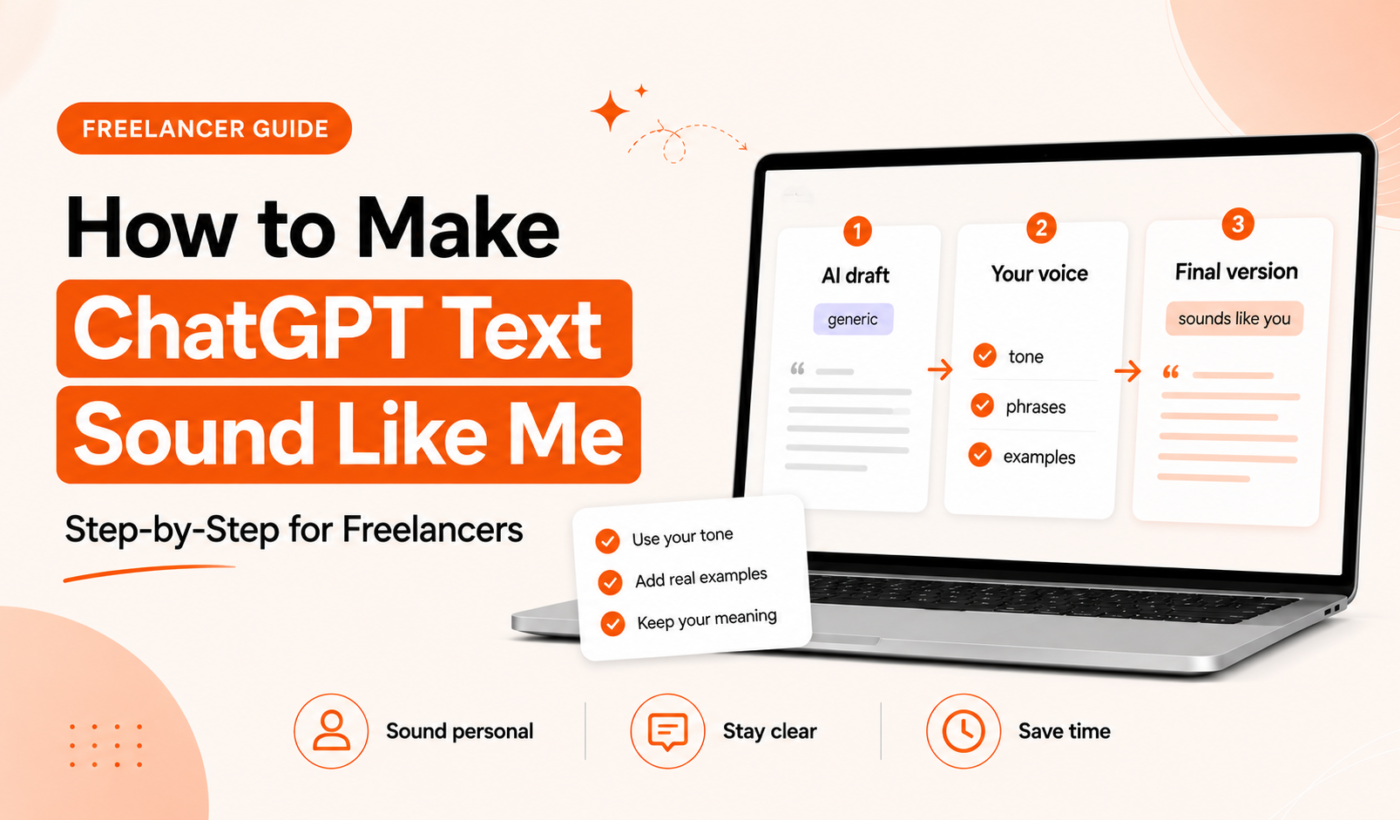
ChatGPT can save hours of writing time, but its output often sounds generic or not like you. This tutorial shows exactly how to make ChatGPT text sound like me using three repeatable steps: build a short voice profile, use targeted prompts, and do quick edits. You’ll also get practical examples and free Typing Engine tools to speed the process—no heavy rewriting required.
Why ChatGPT text often doesn’t sound like you
How large language models balance clarity and neutrality
Models like ChatGPT aim to be helpful and broadly readable. That usually means neutral tone, predictable phrasing and safe grammar. The result is useful but often lacks the quirks, rhythm and signature phrases that make writing unmistakably yours.
Common signs your voice is missing (tone, rhythm, signature phrases)
- Short, even sentence lengths with few contractions.
- Polite but bland phrasing (“I recommend” instead of a punchy line you normally use).
- No personal stories, colloquialisms, or recurring phrases you use in interviews or posts.
Quick diagnostic: a short checklist to compare your writing vs AI output
- Pick one paragraph you wrote and one ChatGPT paragraph on the same topic.
- Check for signature words or phrases you use—are they present?
- Compare sentence length and punctuation rhythm (short staccato vs longer flowing sentences).
- If the AI version reads like a manual, your voice is missing.
For background on why AI can sound robotic and how to fix it, see this explainer on Why Does AI Writing Sound Robotic? Causes and Practical Fixes.
Build a concise personal voice profile
You don’t need a novel-length bio. Aim for 4–8 clear attributes you can paste into prompts or keep next to your keyboard while editing.
What to include: tone, sentence length, vocabulary, favorite phrases, formality
- Tone: friendly, direct, authoritative, playful, empathetic.
- Sentence length: mostly short, mix of short+long, or long and flowing.
- Vocabulary level: plain, professional, niche terms.
- Signature phrases: any repeatable lines you use (example: “Here’s the honest view”).
- Formality: contraction use, greetings, sign-off style.
How to pull voice attributes from your past writing
Scan three places you write often: a recent LinkedIn post, two client emails, and one proposal excerpt. Copy one sentence from each that feels most “you” and list the patterns you see (words, rhythm, punctuation). Those patterns become your profile.
Example voice profile templates
- Freelancer (direct): “Friendly, concise, 12–16 words per sentence, uses contractions, ends with a clear next step. Signature phrase: ‘Want to try this?’
- Creator (conversational): “Warm and energetic, uses short questions, occasional one-liners, informal punctuation.”
- Agency owner (professional): “Confident, precise, uses industry terms, 2–3 short examples per point, formal sign-off.”
Prompt techniques: make ChatGPT write like you
Good prompts can get ChatGPT very close to your voice on the first pass. Keep prompts compact: role, voice profile, example sentence, and output constraints.
Use a short voice prompt + example sentence (few-shot priming)
Prompt pattern you can reuse:
“You are a freelance UX writer. Write a 5-sentence email following this voice profile: [paste your 4–8 attributes]. Example sentence: ‘I’ll test this tomorrow and share results by EOD.’ Keep it direct and use contractions.”
Including one real sentence forces the model to match rhythm and word choice.
Prompt recipe: role + voice profile + output constraints
- Role: who is writing (freelancer, founder, marketer).
- Voice profile: paste the 4–8 attributes.
- Example: one sentence that is very “you.”
- Constraints: length, format (email, bullet list), and any must-use phrases.
Temperature and style tips
If your account lets you set temperature, increase slightly (0.6–0.8) to add variety. Explicitly ask for contractions or sentence variety: “Use contractions, alternate short and long sentences, and include one personal line.”
To create multiple stylistic options, run the same prompt multiple times or use the Paraphrase text for free tool to generate variants you can pick from.
Post-editing workflow to humanize ChatGPT output
Even with a good prompt, a two-pass edit makes the draft unmistakably yours. Follow this quick workflow.
First pass: replace generic phrases and inject signature lines
- Scan for bland phrases: “in order to,” “it is important”—replace them with your words.
- Add one personal detail or a signature sentence from your voice profile.
Second pass: tighten sentences and add human rhythm
- Shorten or merge sentences to match your usual rhythm.
- Introduce a deliberate sentence fragment or a rhetorical question if you use them.
Final pass: grammar, clarity and authenticity checks
Use a grammar checker for correctness but avoid blind autocorrections that remove your voice. For a final polish, try the Typing Engine Check grammar for free. For editing tactics that keep meaning intact, this guide is useful: How to Humanize AI Text Without Changing the Meaning: A Practical Guide.
Use tools to speed up voice matching
Tools can automate repetitive parts of this workflow while you keep control of signature lines and intent.
When to run AI Text Humanizer vs. manual edits
Run the Humanize AI text for free tool when you have a complete draft and want a fast baseline that sounds less robotic. Use it as a starting point, then add your personal details and signature phrases. For tips on getting better results from that tool, see Free AI Text Humanizer: How to Get Better Results.
Using Paraphrasing Tool and Paragraph Rewriter to vary sentence structure
Use the Paraphrase text for free to create alternate phrasings, then pick lines that feel most like you. For paragraph-level options, test the Rewrite a paragraph for free tool to compare before/after versions.
Final polish with Grammar Checker and Summarizer Tool
After you’ve added voice, run the Check grammar for free tool to catch small errors. If you need a shorter version that preserves your tone, use the Summarize text for free.
Examples, templates and ready-to-use prompts
Sample voice profiles and matching ChatGPT prompts
Freelancer profile (direct): “Tone: direct, friendly. Sentences: short. Signature line: ‘Want to try this?'” Prompt example: “Write a 5-sentence Upwork message in this voice. Use the signature line at the end.”
Before / After examples: AI output vs. humanized version
AI (before): “I recommend we proceed with the proposed plan to achieve the desired outcomes.”
Humanized (after): “Let’s try the plan—simple tests first. Want to try this?”
To test paragraph-level rewrites quickly, try Rewrite a paragraph for free.
Template: turn a ChatGPT draft into a first-person LinkedIn post
- Paste ChatGPT draft and run one humanizer/paraphrase pass.
- Replace the second sentence with a one-line personal anecdote.
- End with a short call-to-action that matches your voice.
For an Upwork proposal example that adapts to your voice, try the Generate a free personalized Upwork proposal.
Quick checklist and editing cheat sheet
5-point voice checklist
- Do I use my signature phrase at least once?
- Are sentence lengths varied like my normal writing?
- Did I add one personal detail or example?
- Did I keep the tone and vocabulary consistent with my profile?
- Did I run a final grammar check that preserves voice?
Common mistakes to avoid
- Over-editing until the text becomes awkward.
- Deleting all personal lines to chase neutrality.
- Relying solely on automated tools without a quick human pass.
Troubleshooting: why the voice still feels off and fixes
AI keeps repeating the same phrase—how to diversify prompts
Tell the model explicitly to avoid repeating a phrase, or provide 2–3 alternative signature lines and ask it to pick one. Running the prompt multiple times with a slightly higher temperature also helps.
The output is too formal or too casual—how to recalibrate
Adjust the voice profile: add ‘use contractions’ to be casual or ‘avoid slang, be professional’ to be formal. Then re-run the prompt and pick the best result.
When to retrain your voice profile and how often to update it
Update your profile when your public tone changes (new role, different audience) or every 3–6 months if you actively publish. Keep old profiles as templates for different audiences.
FAQ
Can ChatGPT truly mimic my voice, or will I always need to edit?
ChatGPT can get very close with a good voice profile and prompt, but a short edit ensures authenticity. Think of prompts as the heavy lifting and your edits as the final polish.
What is the shortest prompt that reliably makes ChatGPT sound like me?
Role + one-sentence example + “Match this tone” is often enough. Example: “You are a freelance writer. Match this sentence’s tone: ‘I’ll handle this today.’ Write a 4-sentence follow-up.”
How do I build a voice profile I can reuse across prompts?
Extract 4–8 attributes from your recent writing (tone, sentence length, vocabulary, favorite phrases). Save it as a single block of text and paste it into prompts when needed.
When should I use Typing Engine’s AI Text Humanizer versus manual editing?
Use the humanizer for a fast baseline when you need to humanize many drafts. Do a brief manual pass to add personal details and your signature lines. See tool tips at Humanize AI text for free (tool demo tips).
How often should I update my voice profile as my writing style changes?
Every 3–6 months or after a role change. Keep a version history so you can use older profiles for different audiences.
Wrap-up and next steps
Summary: build a short voice profile, use targeted prompts (role + example + constraints), then do two quick editing passes. Use Typing Engine tools to speed up paraphrasing, humanizing and final checks.
Suggested first tasks: humanize a LinkedIn post or refresh an Upwork proposal. Try the primary tool that creates tailored proposals with your voice: Generate a free personalized Upwork proposal. Explore other free AI tools to humanize and polish drafts in the workflow.