
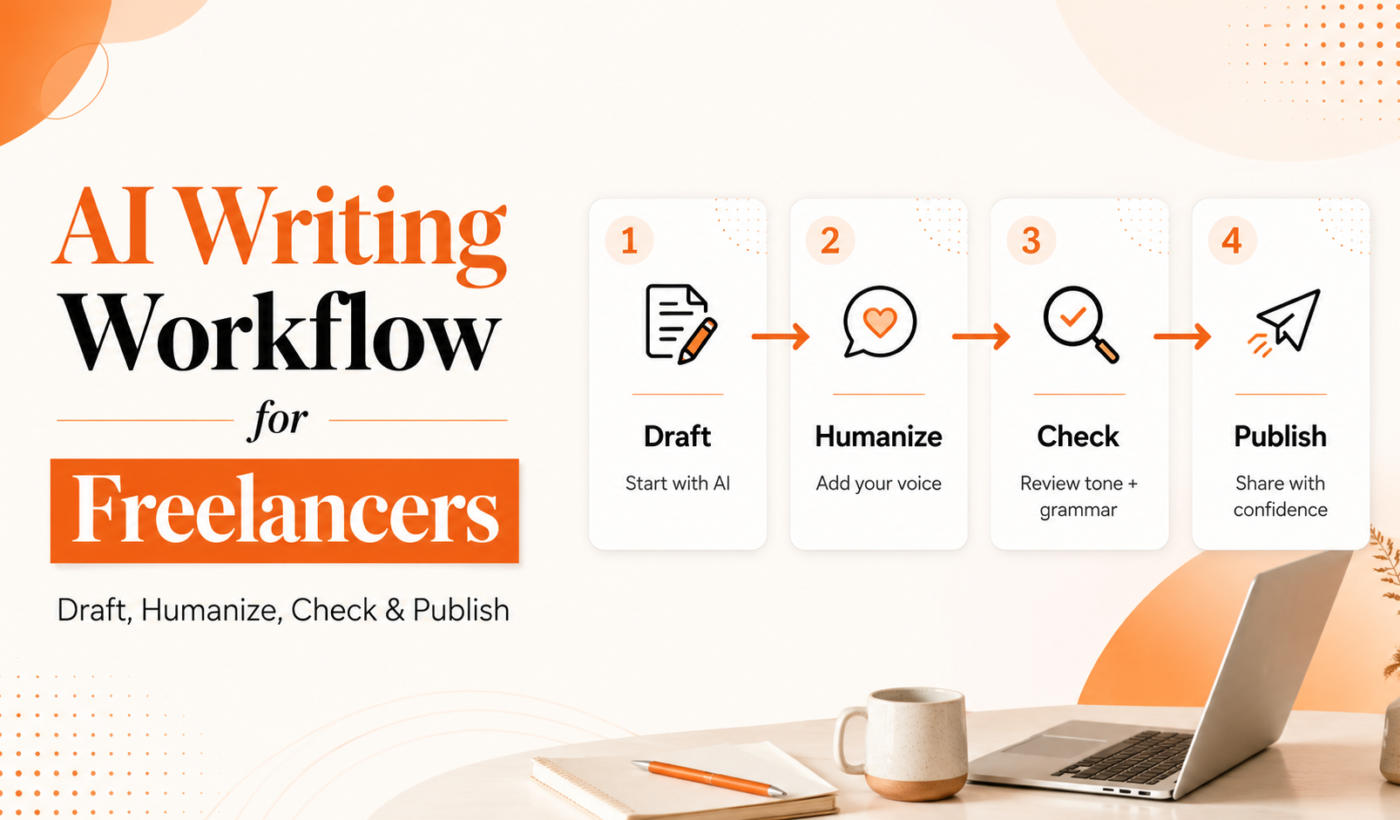
If you use AI to write proposals, profile copy or social posts, a repeatable process will save time and keep your voice intact. This article explains an actionable AI writing workflow for freelancers: Draft → Humanize → Check → Publish. You’ll get prompts, short templates, two timed workflows and specific tool recommendations so you can produce client-ready copy fast. Explore all free AI tools at Explore all free AI tools to try the examples below.
Why a repeatable AI writing workflow matters for freelancers
How AI fits into freelance work (proposals, profiles, social content)
AI is best used for first drafts and idea generation. Use it to structure proposals, summarize briefs, and draft LinkedIn posts. The goal is speed and consistency — not handing clients a generic, soulless message.
Risks to avoid (generic copy, lack of personal voice, accuracy)
- Generic language that sounds like every other applicant.
- Mistakes or invented facts that damage credibility.
- Ignoring platform norms (e.g., how you format proposals or LinkedIn posts).
Workflow overview: Draft → Humanize → Check → Publish
Work in four short stages: generate a structured draft, make it sound like you, verify facts and clarity, then deliver or publish with confidence.
Step 1 — Draft: generate a fast, structured first draft
Choose the right starting tool and template
Pick a drafting tool that matches the output you need. For proposal openings and structure, try the Generate a free personalized Upwork proposal. For long client messages or research, use a summarizer to turn messy notes into concise inputs.
Prompt checklist: client, scope, tone, length, deliverables
- Client summary: one sentence about who they are.
- Scope: one-line deliverables and target outcome.
- Tone: friendly, professional, expert (pick one).
- Length: one-sentence opening, 3–5 bullet point approach, closing line.
- Deadline or availability if relevant.
Example: prompt for an Upwork proposal opening
Prompt to paste into a generator or AI assistant:
“Client: small e-commerce store using Shopify. Scope: redesign product pages to increase conversions. Tone: professional but friendly. Output: 1-sentence opening, 3 bullet-point approach, and 1 closing line offering a short call. Include availability for a 1-week sprint.”
Use the Upwork proposal template generator if you want a guided form that creates this structure automatically.
When to use summarizers and brief-extraction (quick research)
If a client sends a long brief or links, run that text through the Summarize text for free tool to extract goals and constraints before drafting. This keeps prompts focused and reduces hallucinations.
Step 2 — Humanize: make AI text sound like you
Simple edits that add authenticity
- Add first-person details (how you work, tools you use, a one-line relevant example).
- Mention a relevant past project or outcome (non-specific if confidential).
- Include names, timelines and exact next steps where possible.
Tone adjustments: friendly, professional, expert — short rewrites
Keep sentences short and swap neutral phrases for natural ones. Example: change “I can deliver improvements” to “I’ll update your product pages and test three layout variations over two weeks.” Small concrete edits increase trust.
Using paraphrasing and humanizer tools to keep voice consistent
Run the AI draft through the Humanize AI text for free tool to smooth phrasing, then use the Paraphrase text for free tool for alternative sentence structures. These tools speed up rewrites and help avoid a robotic tone.
Mini case example: turning a generic paragraph into a client-ready proposal section
Generic: “I have experience with Shopify and can help increase sales.”
Humanized: “I’ve redesigned three Shopify product pages that increased add-to-cart rates; I’ll run A/B tests on layout and copy to lift your conversions within two weeks.”
For advanced personalization tips, see How to make ChatGPT text sound like me.
Step 3 — Check: accuracy, grammar, formatting and platform rules
Grammar and clarity checklist
- Read for one-sentence clarity. Can the client see next steps?
- Run a quick grammar pass using Check grammar for free.
- Shorten long sentences and eliminate filler.
Factual checks and quick source verification
Verify any numbers, dates or claims. If you can’t confirm a client figure, hedge language: use “likely”, “estimated” or ask the client directly in your proposal.
Platform-specific checks (Upwork proposal length, LinkedIn post format)
Before sending: ensure attachments are named clearly, copy fits character limits, and you haven’t included prohibited content. For LinkedIn posts, break long text into short paragraphs and use bullet points for readability.
Final read-aloud and client-focused question checklist
- Read the opening aloud — does it sound natural?
- Does the proposal answer “Why you?” in one line?
- Include a clear next step: a meeting link, availability, or a short deliverable timeline.
Step 4 — Publish: deliver, submit or post with confidence
Proposal submission: subject line, opening line, attachments checklist
- Subject/opening line: state the main benefit in one sentence.
- Attachments: mockups, case study PDFs, and a one-page scope document named clearly (e.g., “Acme-Shopify-Proposal.pdf”).
- Include contact availability and a suggested next step.
LinkedIn and portfolio posting checklist
- Use a short hook, 2–4 short paragraphs, and one clear CTA (e.g., “DM for a quick chat”).
- Add visuals or examples where possible to increase credibility.
Follow-up timing and canned follow-up templates
Wait 48–72 hours for a response on proposals, then send a polite follow-up. Keep follow-ups short and focused on the client’s priorities rather than repeating the full proposal.
Measuring success and iterating on messages
Track responses and interview rates from different opening lines. Use what wins most often and refine prompts based on real feedback.
Practical workflows, templates and time-budget examples
10–20 minute rapid proposal workflow (for volume applications)
- Summarize the job post with the Summarize text for free tool (2–3 minutes).
- Generate a 3-bullet approach with the Upwork proposal generator (3–5 minutes).
- Humanize the opening with the Humanize AI text for free tool (2 minutes).
- Quick grammar check (2 minutes) and send.
45–60 minute polished proposal workflow (higher-value jobs)
- Summarize client materials and extract outcomes (5–10 minutes).
- Draft a tailored proposal with the Upwork proposal generator and add a one-page scope (15–20 minutes).
- Humanize and add a short relevant case example (10–15 minutes).
- Full grammar and fact check, attach files, then submit (10 minutes).
Profile and LinkedIn post workflow templates
Use a three-line headline, a two-paragraph summary, and 3–5 bullets for specialties. For posts, write a single-sentence hook, supporting detail, then a CTA.
Quick checklist to run before hitting send
- Is the opening specific and client-focused?
- Did you add one personal detail or example?
- Any factual claims verified or hedged?
- Grammar checked and formatting readable on mobile?
Recommended tools and when to use them
Draft tools: summarizer and proposal generator use cases
Start with the Summarize text for free tool for briefs, then move to the Generate a free personalized Upwork proposal for structured proposals.
Humanize and reword: AI Text Humanizer and Paraphrasing Tool
Use Humanize AI text for free to add natural phrasing and the Paraphrase text for free tool for alternative sentences.
Check: Grammar Checker and manual fact-checking
Run final copy through Check grammar for free and do a short manual fact check on any client claims or metrics.
Where to find them: free tools hub
Try all of these at the Explore all free AI tools hub. For a broader comparison, read Best AI tools for freelancers in 2026.
Appendix: quick checklist and troubleshooting
One-page workflow checklist (Draft → Humanize → Check → Publish)
- Draft: concise prompt, focused output
- Humanize: personal detail, concrete next step
- Check: grammar, facts, platform rules
- Publish: clear subject/opening and attachments named
Troubleshooting: too generic, inaccurate facts, tone mismatch
- Too generic: add a one-line relevant example or metric.
- Inaccurate facts: remove specifics or ask the client to confirm.
- Tone mismatch: run the text through the use the AI Text Humanizer to add natural phrasing tool and make short manual edits.
Next steps: track results and refine prompts
Keep a short spreadsheet of which opening lines get responses. Test small changes and build a library of prompts that win.
FAQ
What is the simplest AI writing workflow a freelancer can follow?
Draft using a short prompt, add one personal detail, run a quick grammar check, and send. That covers Draft → Humanize → Check → Publish in under 20 minutes.
How do I make AI-generated proposals sound like me without rewriting everything?
Add one specific example or timeline, replace neutral phrases with conversational alternatives, and run the draft through the AI Text Humanizer to adjust phrasing.
Which Typing Engine tools should I use for grammar, paraphrasing and humanizing?
Use the Grammar Checker for clarity, the Paraphrasing Tool for alternatives, and the AI Text Humanizer to make output sound natural.
Can I use AI-generated text on Upwork and LinkedIn without violating rules?
Yes, but make content truthful, accurate, and personalized. Avoid copying another person’s work and follow each platform’s content and profile rules.
How do I quickly check facts and avoid sending inaccurate claims?
Verify client-provided numbers before repeating them. If verification isn’t possible, use cautious language and ask the client to confirm specifics.
If you want to try a guided proposal workflow right away, Try Typing Engine’s free Upwork Proposal Generator. For other parts of this workflow, explore the free AI tools directory.