
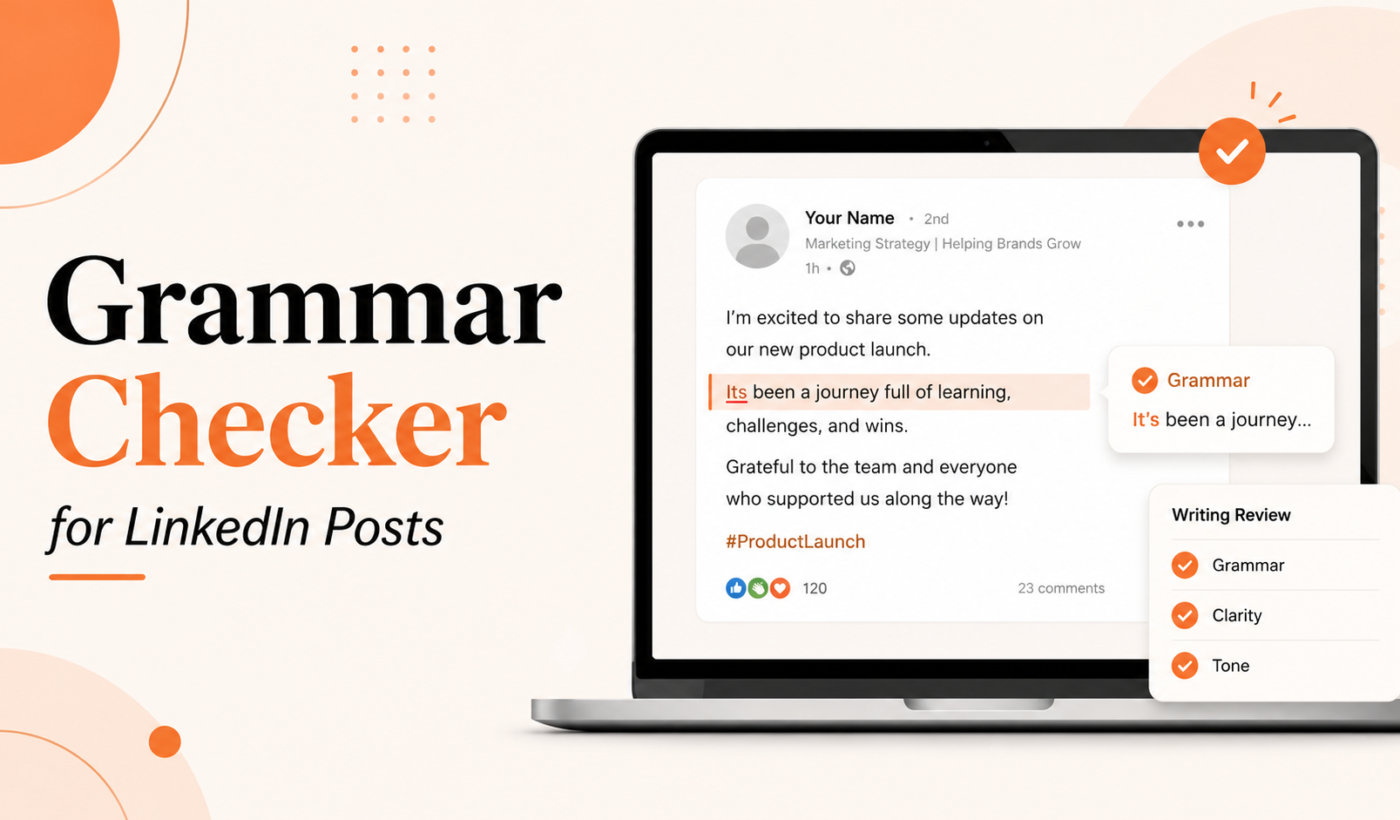
Clean writing matters on LinkedIn. A small typo or awkward sentence can reduce credibility or confuse a potential client. This article shows a practical 7-step pre-publish workflow that centers on using a grammar checker for LinkedIn posts and free Typing Engine tools. Follow it now and save the checklist as a template you can reuse.
Why use a grammar checker for LinkedIn posts?
Why clear LinkedIn writing matters for freelancers and consultants
On LinkedIn you’re writing to peers, clients, and prospective buyers. Clear copy builds trust, makes your expertise easier to understand, and helps readers take the action you want—connect, comment, or hire. A quick grammar pass removes distractions and keeps attention on your message.
Common LinkedIn grammar and formatting mistakes
- Missing commas in lists or compound sentences.
- Incorrect verb agreement or tense shifts.
- Overlong sentences that lose the reader.
- Poor line breaks or paragraph blocks that make posts hard to skim.
- Broken links, incorrect @mentions, and misplaced hashtags.
When automatic corrections can change your tone
Grammar tools often suggest formal fixes that can make a post sound stiff. Accept clear error fixes (spelling, agreement) but review suggestions that affect phrasing. Keep control of your voice—especially for conversational or creative posts aimed at engagement.
A 7-step pre-publish grammar workflow
Step 1 — Pause and decide the post’s goal (engage, pitch, share insight)
Before editing, label the goal: engagement, thought leadership, lead generation, or personal update. If your original draft is long, use the Summarize text for free tool to create a short version you can polish for LinkedIn’s quick-read format.
Step 2 — Read the draft aloud for clarity and flow
Reading out loud highlights rhythm issues, repeated words, and unclear transitions. If a sentence trips you up when spoken, rewrite it. Aim for one clear idea per sentence and short paragraphs or single-line breaks for mobile readers.
Step 3 — Run a grammar check (how to use a grammar checker effectively)
Run your draft through a grammar checker to catch spelling, punctuation, agreement and obvious style problems. Use the tool to accept straightforward fixes and to flag areas that need rephrasing. Try Typing Engine’s Check grammar for free to quickly surface errors and suggested fixes.
Step 4 — Humanize and fix tone (use an AI humanizer to keep your voice)
If you started with AI or made heavy automated edits, use the Humanize AI text for free tool to restore natural phrasing and contractions, and to preserve your personal voice while keeping grammar clean.
Step 5 — Paraphrase or tighten sentences that feel wordy
For sentences flagged as long or passive, use the Paraphrase text for free tool to generate shorter alternatives. Pick one that keeps your meaning but improves readability. Prefer active verbs and remove filler words like “really,” “very,” and redundant phrases.
Step 6 — Check formatting: line breaks, emojis, links, and hashtags
Formatting matters more than many writers expect. Break long blocks into short paragraphs, add a single relevant emoji if it supports tone, and make sure @mentions and #hashtags are correct. If you need a fresh draft arranged for LinkedIn, use Create a free LinkedIn post and then run it through steps 2–5.
Step 7 — Final quick scan and publish checklist
Do one last fast check: correct any remaining typos, verify links and mentions, ensure CTA clarity, and confirm attachments or images uploaded correctly. If you’re satisfied, publish. If not, save and revisit after a short break for fresh eyes.
Use tools wisely: what to accept and what to override
When to accept grammar suggestions
- Fix obvious typos and misspellings.
- Resolve subject-verb agreement errors and incorrect pronouns.
- Correct punctuation that changes meaning (commas, apostrophes).
When to override suggestions
- Keep contractions and colloquial language if they match your personal voice.
- Retain short fragments intentionally used for punch or emphasis.
- Avoid changes that make a post sound overly formal when your audience prefers friendly language.
Tips for keeping the post conversational but professional
- Use first person sparingly in thought leadership; use “we” for company updates when appropriate.
- Prefer simple words over jargon unless your audience expects technical terms.
- Keep one clear CTA—comment, connect, or visit a link.
Final pre-publish checklist for LinkedIn posts
Spelling, punctuation and grammar
- Run a grammar check: Check grammar for free.
- Fix typos, apostrophes, and comma placement that change meaning.
Readability and length
- Short paragraphs, one idea per sentence; break lines for mobile readers.
- Keep the post focused—if it’s too long, summarize with Summarize text for free.
Mentions, hashtags and links
- Confirm @mentions resolve to the correct profile.
- Check hashtags for spelling and relevance; avoid over-tagging.
- Test any external links and ensure spacing doesn’t break them.
CTA, value and next step
- Does the reader know what to do next? Keep the CTA simple and visible.
Accessibility and attachments
- Upload images correctly and add descriptive alt text where LinkedIn supports it.
- Include captions or short descriptions for attachments so readers understand context.
Examples: before-and-after LinkedIn post edits
Example 1 — Cold outreach / connection request post (before → after)
Before: Hi im a freelance web developer. If youre looking for help with your website lets talk. I have experience with WordPress, react and ecommerce. Message me
After: Hi — I’m a freelance web developer focused on WordPress and e-commerce. If you need a faster, more reliable site, message me and I’ll share a short plan.
Used: grammar check to fix contractions and typos, humanizer to restore natural tone, and tightened wording with the Paraphrase text for free tool.
Example 2 — Thought leadership snippet tightened for clarity
Before: In my work I often see teams dont plan for scale and this creates issues later on which costs time and money and is preventable.
After: I often see teams skip planning for scale. That choice creates avoidable costs and delays. Plan for scale early—here are three quick checks.
Used: read aloud to fix flow, summarizer to shorten, and grammar check to confirm punctuation.
Example 3 — Client result / reflection polished for credibility
Before: We helped a client increase conversion rates alot and the team were happy with the results and we also improved page speed.
After: We improved a client’s conversion rate and page speed, which reduced bounce rates and led to measurable uplift. Happy to share before/after metrics on request.
Used: grammar check for possessive/apostrophe and agreement, humanizer for voice, and paraphrasing for precision.
Quick walkthroughs of Typing Engine tools for this workflow
Use the Grammar Checker to catch errors and suggested fixes
Copy your draft into Check grammar for free. Accept straightforward fixes and flag style suggestions for manual review.
Humanize AI-generated drafts with the AI Text Humanizer
If your draft sounds robotic after edits, run it through Humanize AI text for free to restore contractions and conversational phrasing.
Generate or iterate post drafts using the LinkedIn Post Generator
Need fresh angles or a rearranged draft? Use Create a free LinkedIn post and then apply the workflow steps above to polish it.
Paraphrase to shorten long sentences with the Paraphrasing Tool
Use Paraphrase text for free for alternatives when a sentence feels wordy or passive.
Summarize long ideas before posting with the Summarizer Tool
When your idea is long, start with Summarize text for free to create a LinkedIn-sized version to polish.
Related reading and keeping your process fast
For a deeper look at restoring voice after AI edits, read the Typing Engine guide on AI humanizer for LinkedIn posts: before-and-after examples and an editing checklist. For a longer-form grammar checklist you can adapt, see the Grammar and Clarity Checklist for Blog Posts. The compact email checklist at Checklist: How to Check Grammar Before Sending a Client Email also applies to short LinkedIn messages and drafts.
FAQ
What is the best free grammar checker for LinkedIn posts?
There are several free options. For quick, on-the-spot checks integrated with this workflow, try Typing Engine’s Check grammar for free tool to catch common errors and improve clarity.
How do I proofread a LinkedIn post fast without losing my voice?
Follow the 7-step workflow: decide the goal, read aloud, run a grammar check, humanize tone, paraphrase long sentences, fix formatting, and do a final scan. Use the AI Text Humanizer to restore voice after mechanical edits.
Can I rely on grammar checkers to fix tone and style?
No. Grammar checkers are best for correctness—spelling, punctuation, agreement. Use human review and the AI Text Humanizer for tone, and override suggestions that conflict with your intended voice.
What steps should I follow right before I hit publish on LinkedIn?
Do a final checklist: run a grammar check, confirm @mentions and links, check formatting and images, ensure one clear CTA, and verify attachments or alt text where possible.
How can I keep LinkedIn posts short and readable while still being professional?
Use short sentences, one idea per line, and remove filler words. Summarize long ideas with the Summarize text for free tool, then tighten with the paraphraser and grammar checker.
Conclusion and next steps
Recap: decide the post goal, read aloud, run a grammar check, humanize tone, paraphrase for brevity, fix formatting, and finish with a quick checklist. Make checking LinkedIn posts a habit—review a handful of past posts each week to learn what edits increase engagement.
Ready to try the full suite? Generate your next post with Create a free LinkedIn post, polish it with Check grammar for free and Humanize AI text for free, then return here to follow the steps. If you want a quick win for proposals as well, Generate a free personalized Upwork proposal to see how the tools help across your freelance workflow.